


How to use Octoboard with Make.com

Make.com is a powerful automation platform that allows you to connect various applications and services to automate workflows and tasks. With Make, you can automate processes just like a developer, all without any coding expertise.
Octoboard offers a variety of features for marketing professionals, ecommerce store owners and website operators - from Web analytics to Ecommerce email marketing and advanced Paid advertising data processing.
Part of the Octoboard Marketing Analytics platform are website analytics and lead generation features that can be incorporated into Make.com flows. You can use Octoboard Make modules to achieve the following:
- Convert IP addresses to IP location and discover businesses that visit your website
- Extract social links from any web page that can be used to enable email marketing and lead generation
- Extract content from any web page, parse it and use it for automated AI generation
- Run SEO audit for any live web domain
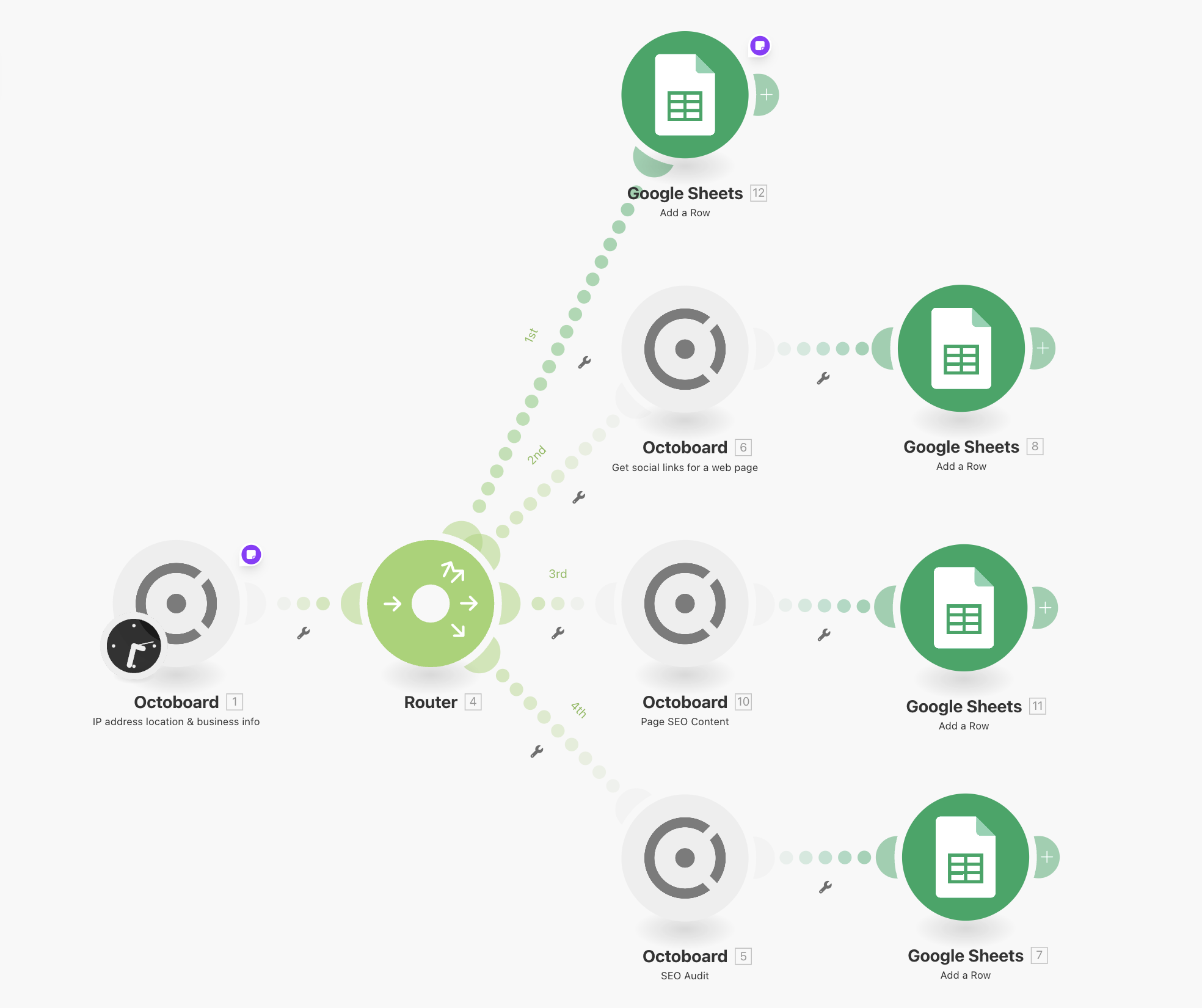
In order to start using these features inside Make.com, you need to have an Octoboard account and active Octoboard connection inside your Make account. The following topics explain how to create Octoboard-Make connection and use the modules.
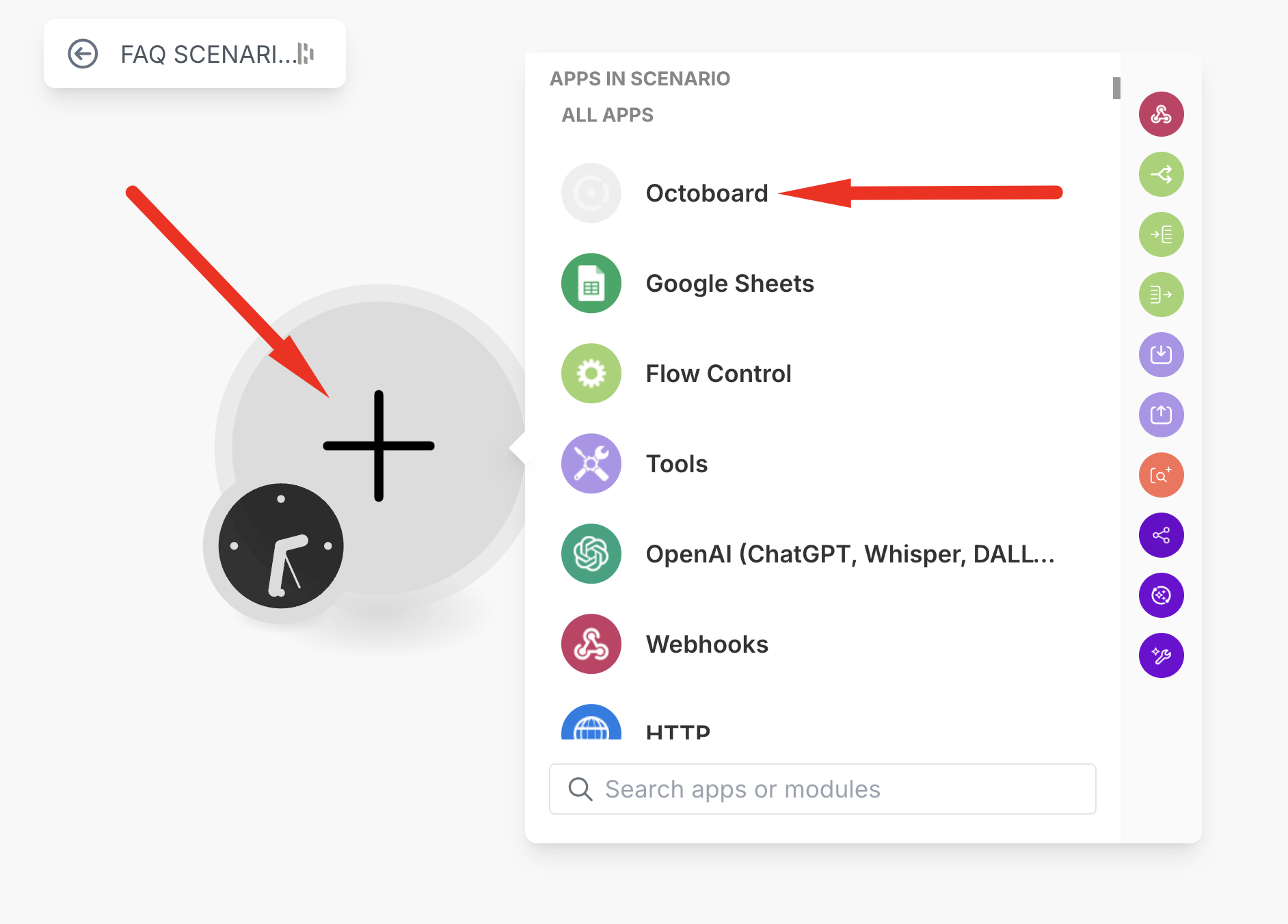
In your Make account when adding a new module, In your Make scenario, find Octoboard application and select any module of the application.
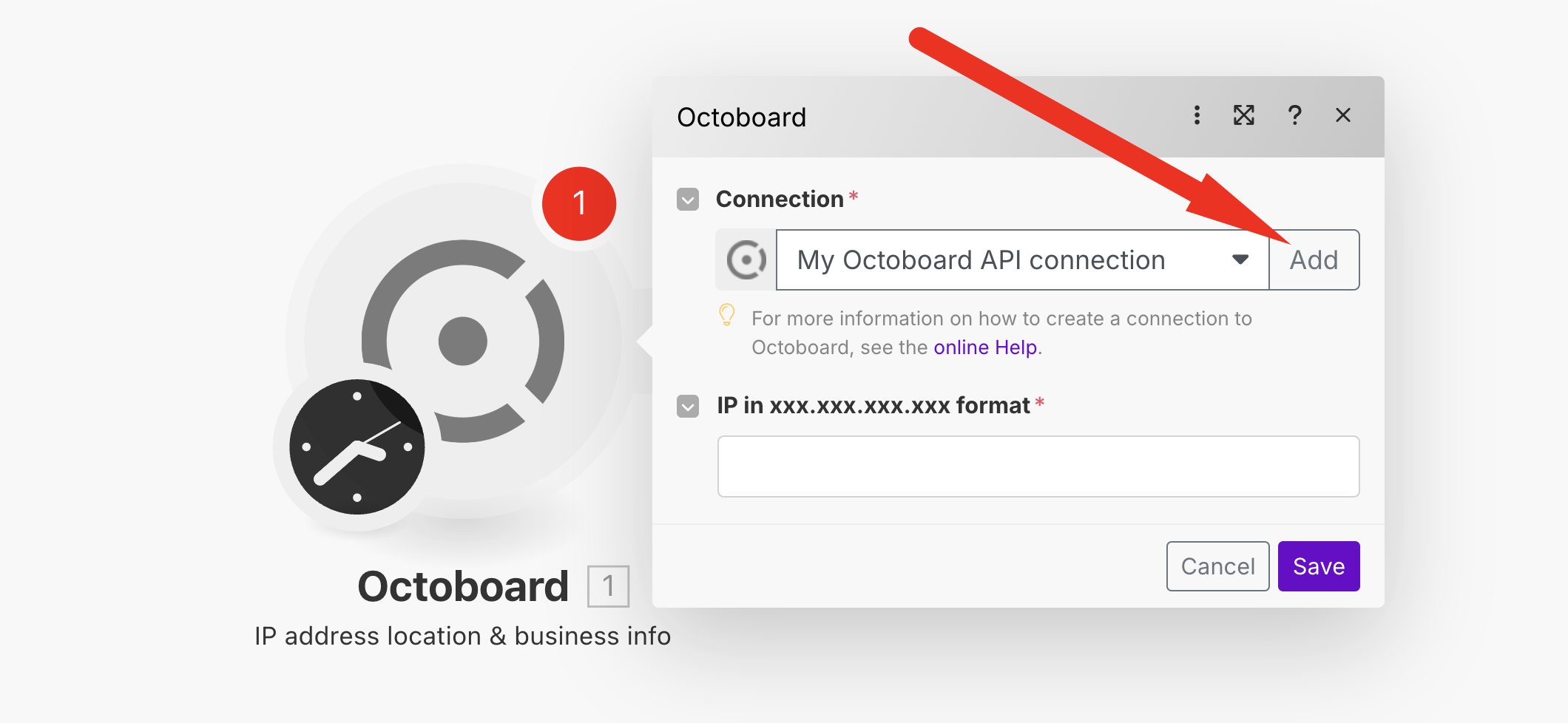
Select any module (IP address location & Business info, for example). You will be asked to create an Octoboard connection. Click “ADD”:
You will see a popup window that will prompt you to select an Octoboard platform (Octoboard for Business or Octoboard for Agencies) and either log into an existing account or create a Octoboard new account.
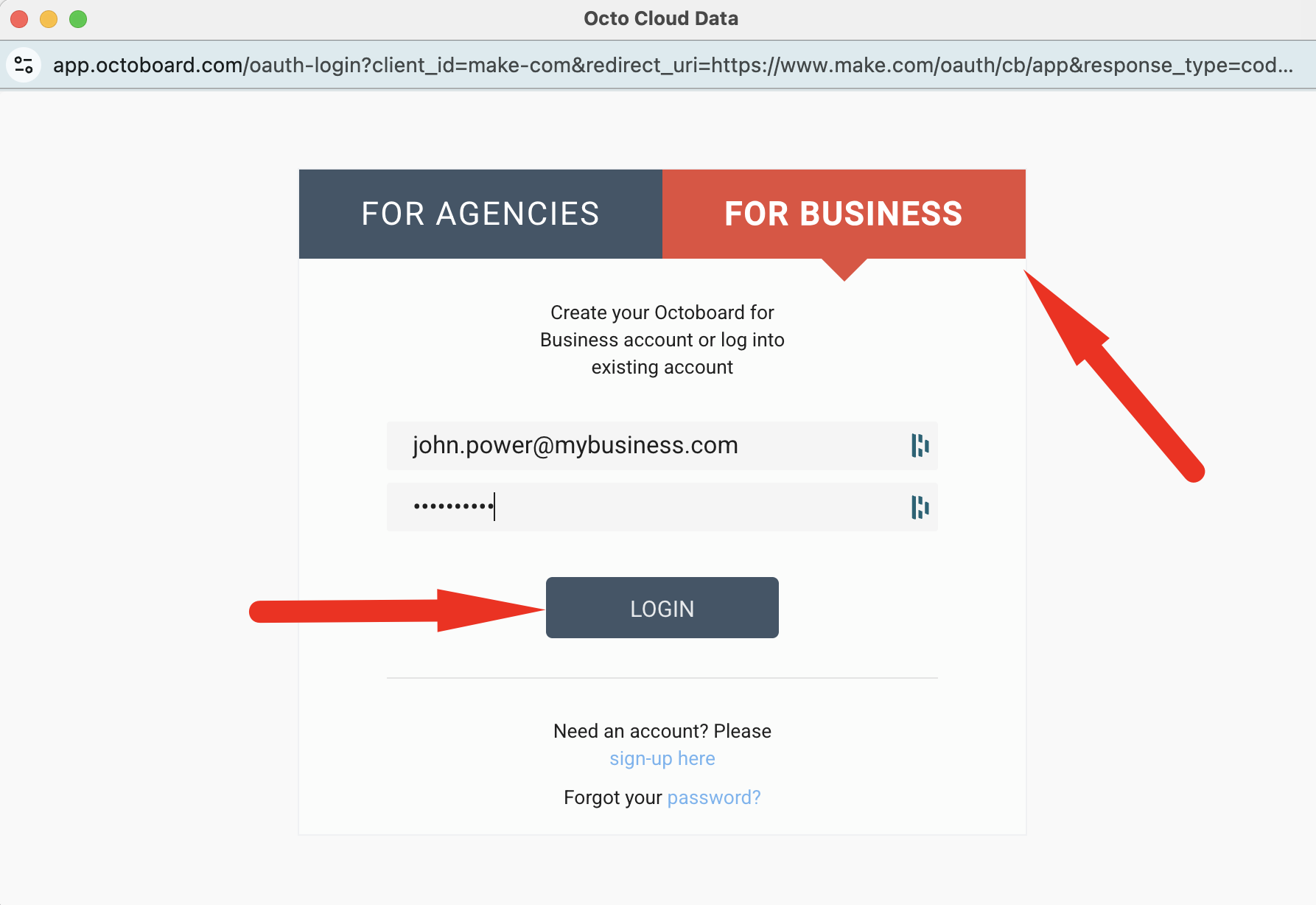
Once you have confirmed your login details, the Octoboard connection will be established and you will be able to use Octoboard modules as part of your Make scenarios.
When adding an Octoboard module, select “IP address location & Business info”. This module will require an IP address as input and will provide the following output that you can use to customize your content or capture new leads:
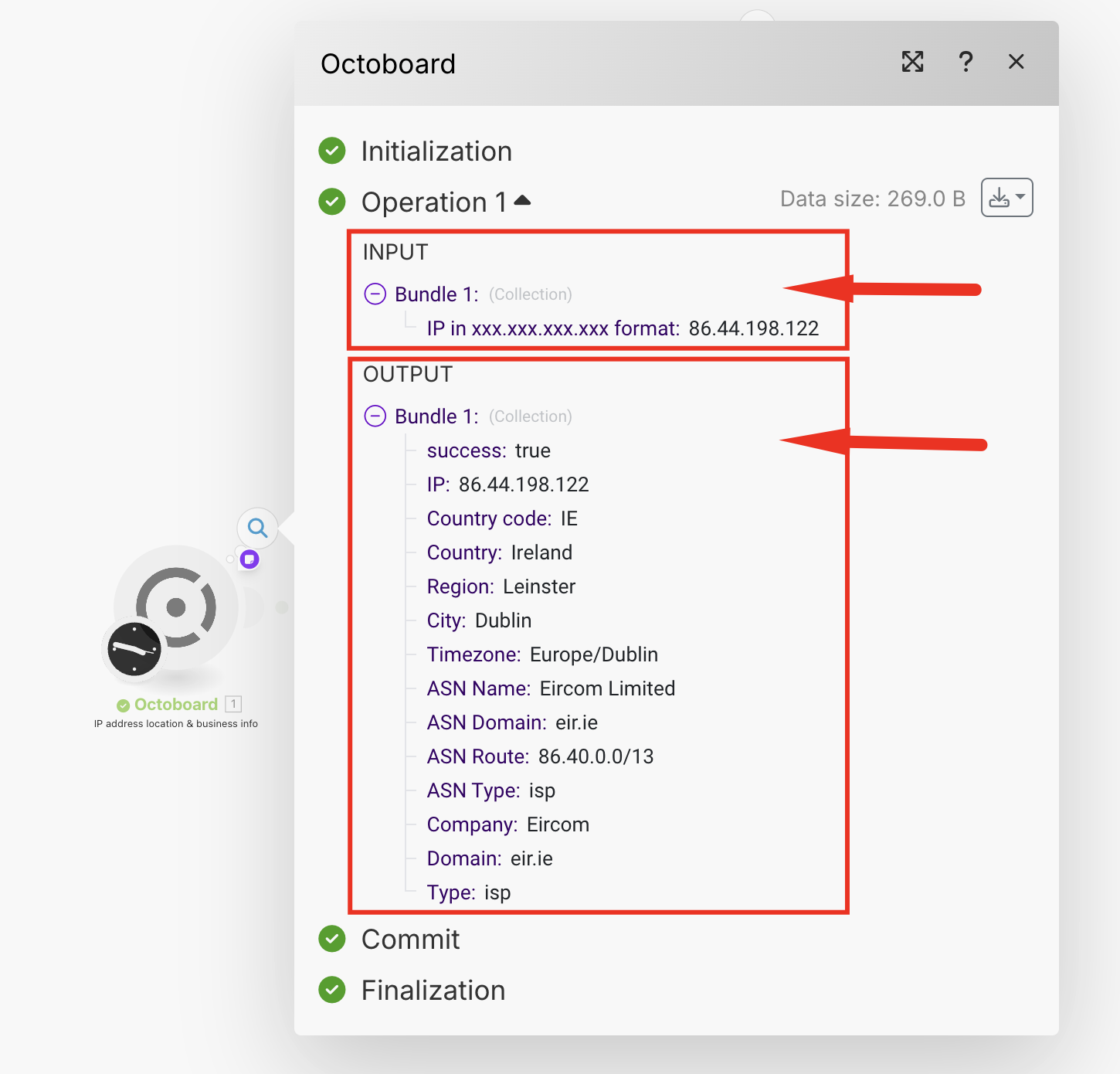
Output parameters contain the exact geographical location of the IP address including Country, Region and City as well as the name of the business that is behind this address. In this case, it is a public broadband provider. In some cases, Octoboard can identify individual companies if they are using dedicated IP ranges.
This module can be used to customise email marketing campaigns if one requires social links or other details of the business that you are trying to contact.
To get social links from any web page, when adding Octoboard module, select “Get Social Links for Web Page” and use any web page url address as input parameter. Once the module has been executed, the following information will become available as part of the module output:
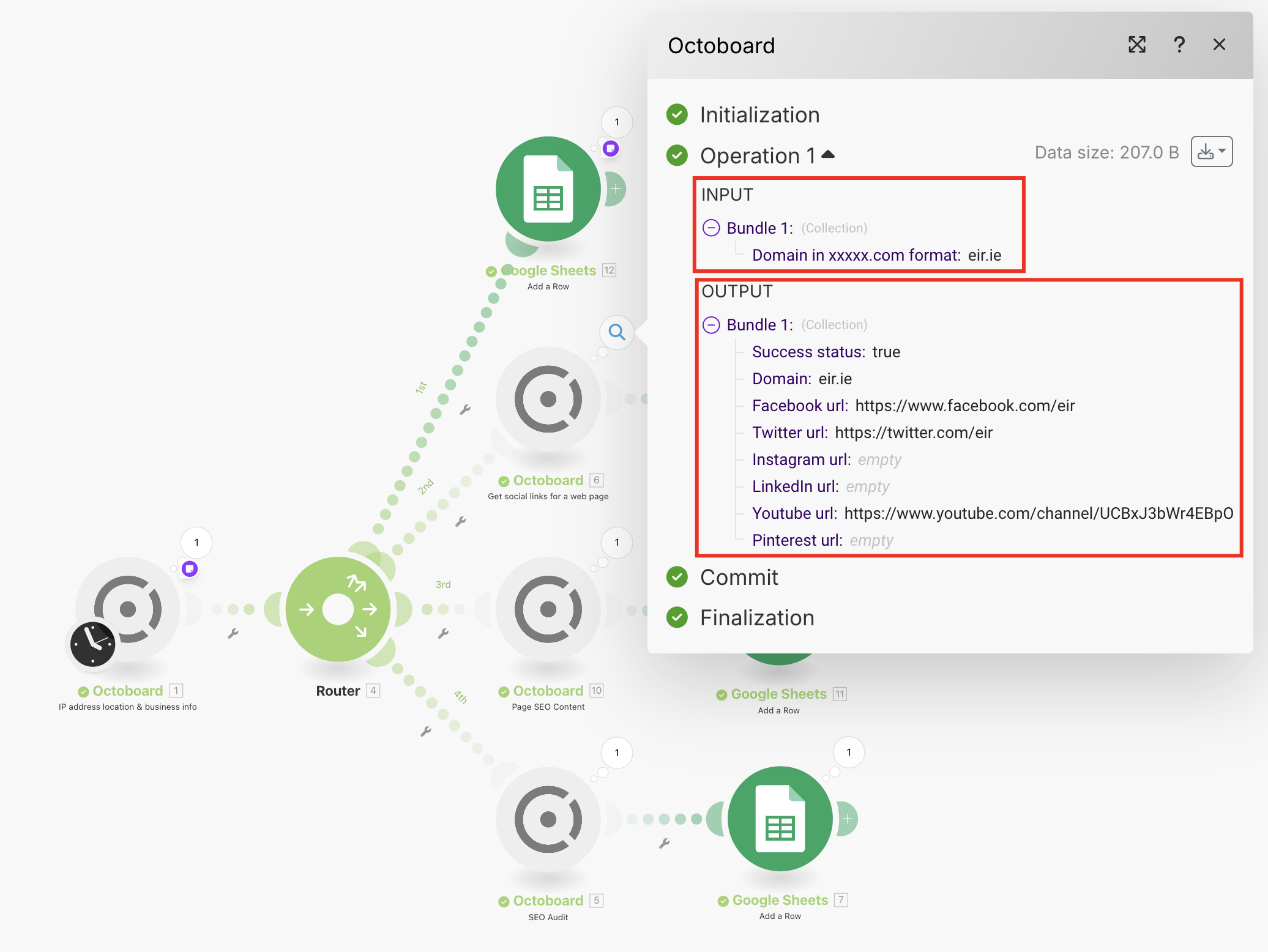
Note that the module retrieved Facebook, Twitter (X) and Youtube channel links for the specified domain.
This module will take a web page URL and will offer page title and page description of the web page.
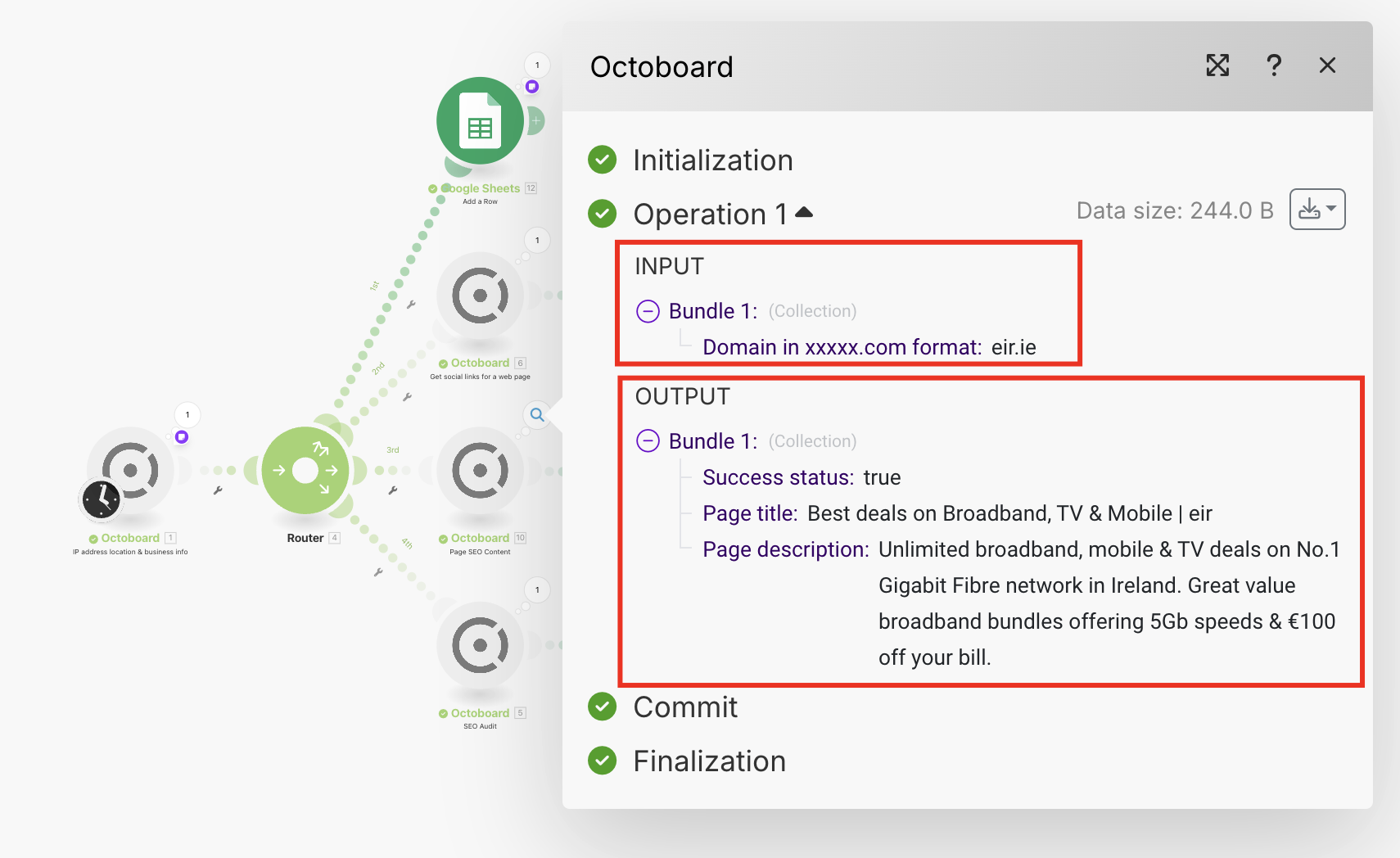
Apart from title and page description Octoboard will return arrays of H2 headers for subsequent analysis. Output of this module can be used to build new content or extend existing blog posts.
Use Octoboard’s SEO Audit module to analyze any accessible (live) web domain. As input parameter it takes domain name and returns over 30 parameters (SEO Audit results) related to Content, Domain speed, Usability, Security and others.
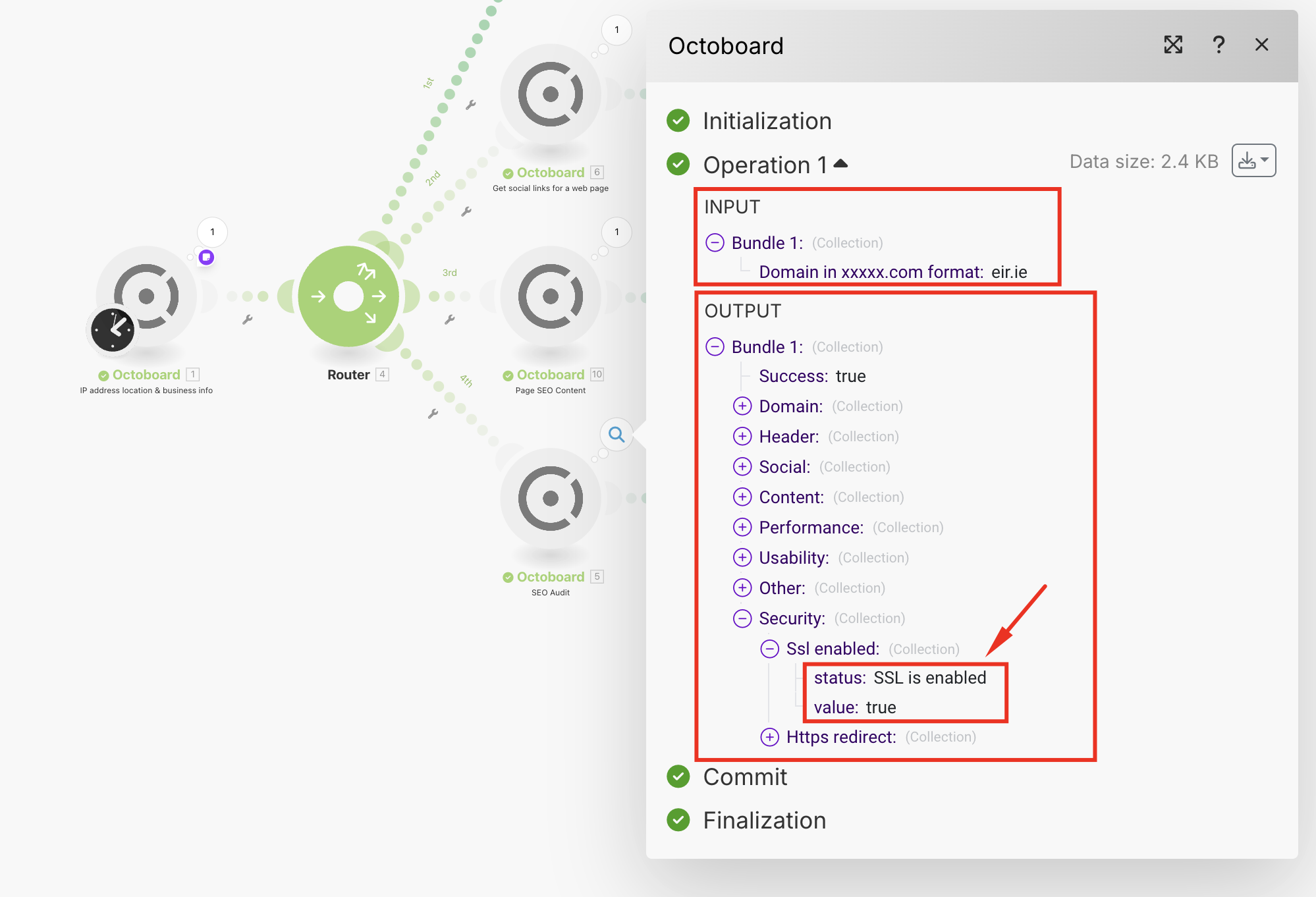
In this example you can see that domain https://eir.ie has SSL security enabled. This flag is return with Status value (“SSL is enabled”) and as a boolean value (“true”).


